The Click That Confirms a Button Press
Button feedback makes a press easier to read: learn how clicks, resistance and release cues signal that an interaction has registered.
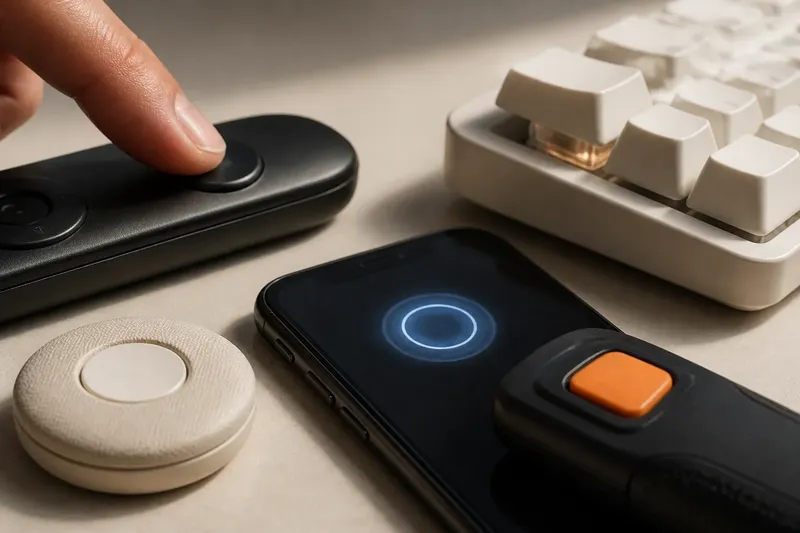
A quiet click can tell your thumb that a button press has registered before your eyes catch up. Button feedback—through touch, sound or both—is not decoration; it is a signal built into the interaction. Its value depends on whether the response arrives at the right moment, feels distinct from surrounding surfaces and matches what the object actually does.
A response closes the loop
Pressing a button is an exchange. The user applies force; the object responds. If that response is perceptible, the user can stop pressing and move on. If it is absent or ambiguous, the user may press again, hold longer or look for another sign that the action worked.
That loop can be physical or electronic. A mechanical switch may make a sound and a change in resistance as its contacts move. A touchscreen has no moving button to click, so it may use a brief vibration, a tone or a change on screen. In each case, the response is useful only if it corresponds to the intended event.
Notice the difference between feedback and outcome. A click can confirm that a control has moved, but it cannot by itself confirm that a whole task is complete. A camera button might click when it is pressed, while saving the image takes place afterwards. If the distinction matters, the interface needs a second cue for the later event.
Timing makes the signal believable
Feedback feels convincing when it follows the action closely. A click that comes before a button moves can suggest that the press began too early; one that arrives after a noticeable pause may sound unrelated. Designers therefore consider not just what the cue is, but which moment in the interaction it marks.
There may be several moments to distinguish: initial contact, the point at which the control activates, and the return as the finger lifts. A keyboard key, for instance, can signal activation on the downward press and offer a lighter return sensation on release. If both directions feel identical, the user may have less information about whether the key is still held.
For touchscreens, a vibration that follows a tap can make an on-screen control feel more definite, especially where there is no physical travel. But a delayed vibration risks becoming a response to something else the user has already done. A designer should assess the whole sequence on the actual device, including the time between touch, visual change, sound and vibration.
Resistance can be as informative as sound
A click is only one kind of tactile signal. A button may grow firmer as it approaches activation, pass through a distinct point, then feel easier to move after it engages. That change in force helps the finger distinguish a purposeful press from a brush across the surface.
Too little resistance can make a control feel vague, while a very stiff control may invite a harder push than the user expects. The useful balance depends on where the button sits and how it is used. A small button on a handheld remote may need a clear boundary so a thumb can find it; a large push-pad may rely more on broad travel and a firm stop.
Travel matters too. A button that barely moves can still provide a crisp cue through a snap or vibration, but the user has less physical distance to read. A longer, softer movement can feel deliberate, though it may be unsuitable for a control intended for quick repeated presses. The design question is not whether a button should travel far, but whether its movement makes the action legible.
Sound carries information—and travels beyond the user
The sound of a button can confirm a press when the hand is occupied or the control is difficult to see. It can also make repeated actions easier to distinguish. Yet sound escapes the immediate interaction: a loud click may be welcome in a workshop and intrusive in a quiet room, library or shared bedroom.
Material and construction shape the sound. A hard shell can amplify a switch’s snap; a loose panel may add a rattle that users interpret as poor fit or damage. A soft casing can mute the cue until it is difficult to hear. The sound should be considered with the whole object in its intended setting, not treated as a property of the switch alone.
Sound also needs to be consistent enough to mean something. If one press produces a clear click and the next produces a muffled knock, users may wonder whether the control behaved differently. A designer can assess this by listening from the user’s normal position and considering nearby noise, rather than judging the sound only with the device held close to the ear.
Make feedback useful across different conditions
People do not always use a control in the same way. A person may be wearing gloves, using one hand, working in poor light or sharing a room with someone who needs quiet. A cue that relies entirely on a faint sound or a delicate vibration can disappear under those conditions.
Where the interaction matters, combining cues can make it easier to read. A physical click paired with a visible indicator gives the user more than one route to confirmation. On a phone, a short vibration alongside a changed button state can help when the screen is not being watched closely. Extra cues should still be restrained: a tone, vibration and animation for every minor tap can become distracting.
Do not assume that a stronger cue is always a clearer one. An intense vibration may be unpleasant, and a loud tone may be unsuitable in a quiet setting. The aim is a distinct response at a proportionate level, with settings or a less disruptive alternative where the product and context call for them.
What should a button’s click tell you?
Should every button make a sound?
No. A sound is useful when it adds confirmation that another cue cannot provide, but it may be unnecessary for a physical switch whose movement is already clear. In a quiet environment, a visible state change or tactile response may communicate more without disturbing others.
Can a touchscreen button feel physical?
Vibration can provide a brief touch cue, but it does not reproduce the travel or force change of a mechanical button. Treat it as feedback for a particular event, then check that its timing and strength suit the device and the way people hold it.
What if a press clicks but nothing happens?
The click may confirm that the control moved without confirming that the requested action completed. A separate status cue—such as a changed icon or an on-screen message—can show the outcome, provided it is clear and arrives at the relevant point in the process.
How can you tell whether a click is too subtle?
Try the control in its intended setting and pay attention to whether a user can tell a successful press from a light touch without watching closely. If the difference is hard to perceive, consider clearer resistance, a more distinct sound or a second cue rather than simply making every response louder.
Read the signal in its setting
Imagine a desk lamp with a small push-button on its base. If the button clicks but the light takes a moment to turn on, the click confirms the press while the glow confirms the result; if the lamp stays dark, the user has a reason to check the power rather than keep jabbing the control. That separation makes each cue easier to interpret.
When looking at any object, press its controls gently, then normally, and notice what changes under your finger and what reaches your ear. Ask whether the response marks the press, the activation or the completed task. The click is most helpful when its meaning is precise—and when the object offers another clear sign if the click alone cannot tell the whole story.